


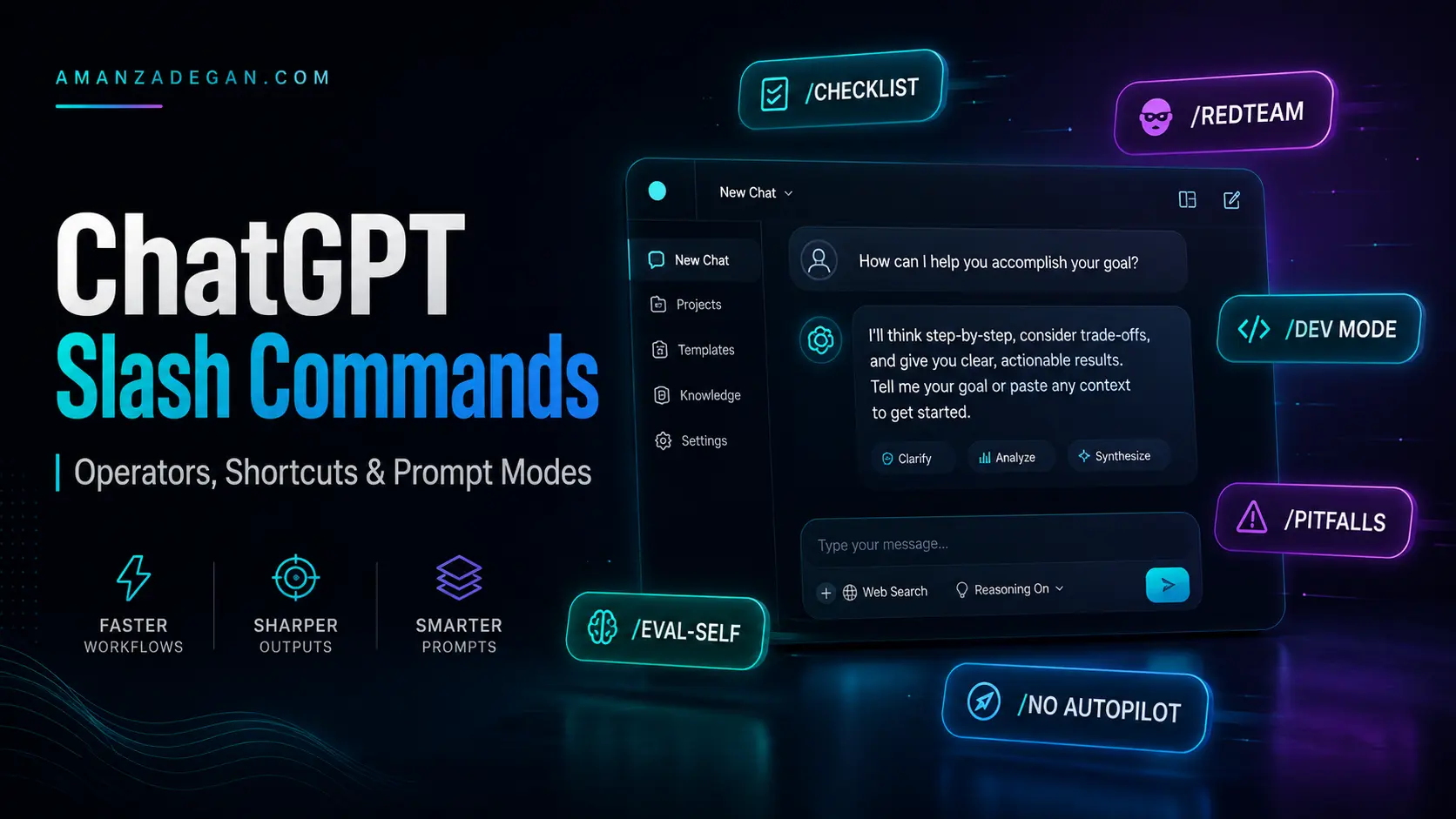
ChatGPT Slash Commands: The Complete Guide to Operators, Shortcuts, and Prompt Modes

ChatGPT slash commands are short instruction patterns that help you control the shape, depth, tone, and reliability of ChatGPT responses. They can make everyday prompting faster, but their real value appears when they are used as a structured workflow for writing, coding, research, SEO, business decisions, and professional communication.
This guide gives you a complete, practical, and careful explanation of ChatGPT slash commands, prompt operators, interface shortcuts, and custom command systems. It is designed for users who want more than a list of shortcuts: you will learn what each command is for, when it works, what not to assume, and how to combine commands without creating confusing prompts.
Table of Contents
Quick Summary
A slash command is a compact instruction that usually starts with a forward slash, such as /CHECKLIST, /ELI5, /DEV MODE, or /PITFALLS. In everyday use, it tells ChatGPT how to respond. For example, /CHECKLIST asks for an actionable list, while /REDTEAM asks ChatGPT to challenge an idea instead of simply agreeing with it.
The most important distinction is that not all slash commands are official ChatGPT product features. Some actions are built into specific ChatGPT interfaces, while many commands are user-written prompt operators. This article uses the term slash commands broadly, but it separates official shortcuts from custom prompt modes so you do not rely on unsupported assumptions.
| Concept | Meaning | Example | Best Use |
|---|---|---|---|
| Official product shortcut | A feature built into a specific ChatGPT interface or tool. | /canvas in supported composer contexts | Opening a supported tool quickly |
| Interface-dependent shortcut | A shortcut that may exist only on certain apps, plans, or rollouts. | macOS app slash commands | Desktop productivity |
| Prompt operator | A plain-text instruction that ChatGPT interprets as guidance. | /PITFALLS, /EVAL-SELF | Improving answer quality |
| Custom workflow command | A reusable command meaning you define for yourself. | /SEO_REVIEW | Personal workflows |
What ChatGPT Slash Commands Really Are
A ChatGPT slash command is best understood as a compressed instruction. Instead of writing a long sentence every time, you use a short label that points ChatGPT toward a response style, format, role, or quality-control behavior.
For example, instead of writing:
Please explain this topic in very simple language, avoid technical jargon, and use a beginner-friendly example.You can write:
/ELI5
Explain SSL certificates.
Similarly, instead of writing a long review instruction such as “Please challenge this plan, identify missing risks, evaluate edge cases, and tell me what could fail later,” you can write:
/REDTEAM /PITFALLS
Review this launch plan.
This works because ChatGPT understands natural-language instructions. The slash symbol is not magic by itself; the power comes from the clarity and consistency of the command pattern.
Official Shortcuts vs Prompt Operators
This is the part many online articles get wrong. A prompt operator like /NO AUTOPILOT can be useful, but that does not mean it is an official hidden ChatGPT system command. It is a user-defined instruction. If you define it clearly, ChatGPT can usually follow it well.
OpenAI documents some product-level shortcuts and tool behaviors. For example, the official Canvas help page explains that Canvas can be opened from the composer and may also be triggered by typing a backslash and using the canvas command in supported environments. See the official Canvas documentation here: OpenAI Canvas Help.
OpenAI also documents Memory controls through Settings > Personalization > Memory, which is different from simply typing a prompt command. See the official Memory FAQ: OpenAI Memory FAQ.
The practical rule is simple: treat product shortcuts as interface features and treat most slash commands as prompt language. This makes your workflow more reliable and protects your content from overstating what ChatGPT officially supports.
| Command Type | Should You Call It Official? | How to Describe It Accurately | Example |
|---|---|---|---|
| Canvas shortcut | Yes, when referring to supported Canvas interfaces | A product shortcut that depends on interface support | /canvas or Open in Canvas |
| Search access | Interface-dependent | A supported tool entry in some ChatGPT interfaces | Typing / and selecting Search where available |
| Memory management | Settings-based | A personalization feature controlled in settings; prompts can reference it | /memory as a user instruction |
| Critical prompt modes | No | User-defined prompt operators | /REDTEAM, /ANTI_ME |
| Workflow macros | No | Reusable prompting conventions | /SEO_REVIEW |
Why Slash Commands Improve Prompting
They Reduce Repetition
Most people repeat the same instruction patterns: summarize this, rewrite this, make it shorter, turn it into a checklist, compare these options, review this critically. Slash commands save time by turning those repeated instructions into a reusable shorthand.
They Improve Consistency
When you use the same command structure repeatedly, your outputs become more predictable. This matters for recurring work such as blog posts, client emails, code reviews, documentation, exam preparation, research summaries, or SEO briefs.
They Force Better Thinking
Commands such as /PITFALLS, /EVAL-SELF, /SYSTEMATIC BIAS CHECK, and /ANTI_ME are especially useful because they push ChatGPT away from a quick agreeable answer and toward a more critical review.
They Create a Personal Workflow System
The most advanced users do not rely on a random list of commands. They build a personal command library that matches their own work: developer review, thesis review, SEO review, client communication, launch planning, decision analysis, or writing polish.
The Complete Command Table
| Command | Type | What It Does | Best Use |
|---|---|---|---|
| /ELI5 | Prompt operator | Explains a concept in very simple language | Learning a new topic quickly |
| /TLDR | Prompt operator | Summarizes long content | Fast understanding |
| /STEP-BY-STEP | Prompt operator | Breaks a process into ordered steps | Tutorials and implementation plans |
| /CHECKLIST | Prompt operator | Turns an answer into an actionable checklist | Execution and review |
| /EXEC SUMMARY | Prompt operator | Creates a short decision-maker summary | Reports and stakeholder updates |
| /FORMAT AS | Prompt operator | Forces a response format such as table, JSON, or outline | Structured output |
| /COMPARE | Prompt operator | Compares options side by side | Tool, vendor, or strategy decisions |
| /DEV MODE | Prompt operator | Uses a more technical developer-oriented response style | Coding, debugging, architecture |
| /PM MODE | Prompt operator | Frames the answer as project management | Roadmaps, dependencies, risks |
| /PITFALLS | Prompt operator | Lists traps, failure modes, and edge cases | Production and planning |
| /GUARDRAIL | Prompt operator | Sets strict boundaries for the answer | Legal, academic, brand-sensitive work |
| /METRICS MODE | Prompt operator | Defines KPIs, acceptance criteria, or measurable checks | SEO, engineering, product |
| /NO AUTOPILOT | Prompt operator | Prevents generic or rushed answers | High-stakes work |
| /EVAL-SELF | Prompt operator | Asks ChatGPT to critique its own answer before finalizing | Quality control |
| /REDTEAM | Prompt operator | Challenges a plan from a skeptical perspective | Risk discovery |
| /BLINDSPOT | Prompt operator | Finds hidden assumptions and missing issues | Decision review |
| /SECONDORDER | Prompt operator | Analyzes downstream consequences | Long-term strategy |
| /REGRET | Prompt operator | Identifies what you may regret later | Important decisions |
| /ANTI_ME | Prompt operator | Argues against the initial recommendation | Avoiding overconfidence |
| /ROLE: TASK: FORMAT: | Prompt framework | Defines role, task, context, output, and guardrails | Reliable deliverables |
How to Use Command Stacks
A command stack combines several compatible commands to define not only the output format, but also the thinking process. Good stacks are specific and non-conflicting. Bad stacks ask for incompatible styles, such as /BRIEFLY and /DETAILED at the same time.
Simple Productivity Stack
/CHECKLIST /PITFALLS
Create a WordPress launch checklist and include the most common failure points.
Technical Review Stack
/DEV MODE /PITFALLS /METRICS MODE /EVAL-SELF
Review this backend architecture for correctness, scalability, maintainability, observability, and future refactor risk.
SEO Review Stack
/AUDIENCE: small business owners searching on Google
/METRICS MODE /PITFALLS /GUARDRAIL
Review this landing page for search intent, trust, internal linking, conversion, and risky claims.
High-Stakes Decision Stack
/NO AUTOPILOT /DELIBERATE THINKING /REDTEAM /SECONDORDER /REGRET /ANTI_ME
Analyze this decision carefully. Compare the options, challenge the assumptions, and end with the strongest recommendation.
Best Practices for Reliable Results
- Put the most important command at the beginning of the prompt.
- Add enough context so ChatGPT knows what the command should apply to.
- Use guardrails when accuracy, compliance, reputation, or evidence matters.
- Separate official product shortcuts from user-defined prompt modes.
- Avoid stacking commands that contradict each other.
- Ask for the output format explicitly when you need a usable deliverable.
- When facts may have changed, ask ChatGPT to verify current information rather than relying on memory.
A strong prompt usually has five parts: role, task, context, format, and guardrails. Slash commands work best when they reinforce that structure instead of replacing it.
Common Mistakes
Mistake 1: Treating Every Slash Command as Official
Many commands you see online are not official product commands. They are useful prompt operators. This difference matters if you are writing public content, training a team, or building a professional workflow.
Mistake 2: Using Commands Without Context
A command like /COMPARE is not enough by itself. Compare what? For whom? Based on what criteria? A better prompt defines the decision criteria.
/COMPARE
Compare WordPress and Webflow for an SEO-focused service business that needs fast publishing, strong landing pages, low maintenance, and easy content editing.
Mistake 3: Asking for Hidden Reasoning Instead of Useful Reasoning Summary
Instead of asking for hidden chain-of-thought, ask for a concise reasoning summary, assumptions, trade-offs, and evidence. This gives you practical transparency without requiring unnecessary internal detail.
Explain the key assumptions, trade-offs, and evidence behind your recommendation.FAQ
Are ChatGPT slash commands official?
Some slash-based actions are product or interface shortcuts, but many commands people use online are user-defined prompt operators. The safest approach is to separate official shortcuts from prompt conventions.
Do slash commands work in every ChatGPT plan?
Product shortcuts depend on plan, model, platform, and rollout. Prompt operators usually work because they are plain-text instructions.
Can I create my own ChatGPT slash commands?
Yes. You can define your own commands as reusable instruction patterns. The clearer the definition, the more consistent the output.
What is the best command for better answers?
For casual work, /CHECKLIST and /TLDR are useful. For serious work, /NO AUTOPILOT, /PITFALLS, /GUARDRAIL, /EVAL-SELF, and /REDTEAM are more powerful.
Should I use one long article or many smaller articles about commands?
For SEO, a strong pillar page plus focused supporting articles is usually better than one overloaded article, especially when different sections target different search intents.
Final Takeaway
ChatGPT slash commands are most powerful when you treat them as a workflow language. Simple commands make answers faster. Advanced commands make answers safer, more critical, and more useful. The best results come from combining commands with context, output format, and clear guardrails.
How to Choose the Right Command
Choosing the right command is less about memorizing a long list and more about identifying the job you want ChatGPT to perform. If the task is about learning, use explanation commands. If it is about execution, use checklist commands. If it is about decision quality, use comparison and critical review commands. If it is about public content, use audience, SEO, and guardrail commands.
| User Goal | Best Starting Command | Add This If Quality Matters | Example |
|---|---|---|---|
| Understand something | /ELI5 or /STEP-BY-STEP | /EXAMPLES, /COMPARE | Explain technical SEO to a non-technical founder. |
| Execute a task | /CHECKLIST | /PITFALLS, /METRICS MODE | Create a pre-launch checklist for a website. |
| Make a decision | /COMPARE | /SECONDORDER, /REGRET | Compare WordPress and Webflow for a content-heavy site. |
| Improve writing | /REWRITE AS | /TONE, /AUDIENCE, /EVAL-SELF | Rewrite this email for a senior manager. |
| Avoid mistakes | /PITFALLS | /GUARDRAIL, /REDTEAM | Review this migration plan for hidden risks. |
A Practical Workflow for Better Prompts
A strong ChatGPT prompt usually goes through four stages. First, define the task. Second, provide context. Third, choose the command stack. Fourth, request the final format. Skipping any of these stages can make the output weaker, even if the slash command itself is useful.
Stage 1: Define the Task
The task should state the outcome, not only the topic. “Write about ChatGPT commands” is broad. “Create a WordPress-ready SEO article explaining official shortcuts and user-defined prompt operators” is much stronger.
Stage 2: Provide Context
Context tells ChatGPT what situation the answer belongs to. A command may mean different things for a student, a senior developer, a CEO, a WordPress editor, or a lawyer. Without context, ChatGPT has to guess.
Stage 3: Choose the Command Stack
Use one command for simple tasks and two to five compatible commands for serious tasks. A good stack is not a pile of buzzwords; it is a compact specification of the reasoning style and output standard.
Stage 4: Request a Final Format
If you need a table, ask for a table. If you need a WordPress post, ask for HTML with H2/H3 headings. If you need an email, ask for a copy-paste-ready message. Many weak outputs happen because the final format was never specified.
Mini Case Study: Turning a Weak Prompt into a Strong Prompt
Consider the prompt:
Make this article better.This is too vague. ChatGPT may improve grammar but miss SEO, structure, accuracy, and conversion. A stronger version is:
/NO AUTOPILOT /SEO_REVIEW /PITFALLS /EVAL-SELF
Review this WordPress article before publication. Check search intent, heading hierarchy, depth, examples, internal links, meta title, meta description, schema, and misleading claims. Then rewrite the weakest sections and give me a final action checklist.
The difference is not just style. The second prompt defines the task, criteria, risk model, and deliverable. This is why command systems are powerful for professional work.
Editorial Note for Public Guides
If you publish a guide about ChatGPT commands, do not present every useful prompt pattern as an official product feature. Readers may be using a different plan, app, workspace, or rollout. A more reliable editorial approach is to label each item as official, interface-dependent, prompt operator, or custom workflow command.
This distinction improves trust and keeps the article accurate even when ChatGPT features evolve. It also helps readers understand why a command might work as a typed instruction but not appear as a menu option in their interface.
Recommended Next Reading
Continue with the related guides in this content cluster:
- Official ChatGPT Shortcuts: Canvas, Search, Memory, and App Commands Explained
- Advanced ChatGPT Prompt Operators for Better Reasoning and Critical Thinking
- ChatGPT Commands for Developers, SEO Specialists, and Business Workflows
- How to Build a Personal ChatGPT Command Library